 Liwu
LiwuHow to Limit MacBook Charging to 80%
Published · Updated · Liwu behavior checked against 2.2.5 ()
On an Apple silicon Mac with macOS Tahoe 26.4 or later, use Apple's Charge Limit if 80% is your target and you accept occasional automatic charges to 100%. On macOS 14 through Tahoe 26.3, or when you need a target below 80% or explicit control over full-charge events, use a reputable third-party limiter after reviewing its system access and removal path.
| Your Mac or requirement | Simplest option |
|---|---|
| Apple silicon, Tahoe 26.4+, 80%–100% is enough | Apple Charge Limit |
| Big Sur 11+ with a regular charging routine | Optimized Battery Charging may be enough |
| macOS 14–Tahoe 26.3 and you want a fixed target | Third-party limiter |
| You want a target below 80% | Third-party limiter |
| You do not want automatic full-charge events | Third-party limiter with explicit top-up behavior |
Apple's two options behave differently. Read the detailed comparison of Optimized Battery Charging and Charge Limit for their version requirements, status messages, overrides, and occasional full-charge behavior.
Choose the built-in option when it meets your needs
Charge Limit is the shortest path to a fixed 80% target on an Apple silicon Mac running macOS Tahoe 26.4 or later:
- Open System Settings → Battery.
- Select the information button next to Charging.
- Choose 80% for Charge Limit, then select Done.
macOS charges to within a few percentage points of the target and resumes after the battery drops more than 5% while connected to power. Choose Charge to Full Now from the battery menu when you need 100%. Apple also says the Mac may occasionally charge to 100% automatically to maintain accurate battery state-of-charge estimates.
If your Mac does not support Charge Limit but follows a regular charging routine, Optimized Battery Charging may be enough. It predicts when the Mac will remain plugged in and may delay charging past 80%; it is not a fixed target you choose.
Set a fixed limit with Liwu
Liwu 2 supports Apple silicon MacBooks on macOS 26.7 or later. The Liwu 1 legacy page covers older supported systems. In Liwu 2:
- Download and open Liwu; approve its helper when macOS asks.
- Open the menu-bar battery control.
- Drag the battery bar or type a whole-percent target in Limit. Supported Macs offer 20–100%; when low-target support is unavailable or cannot be confirmed, the minimum stays at 80%.
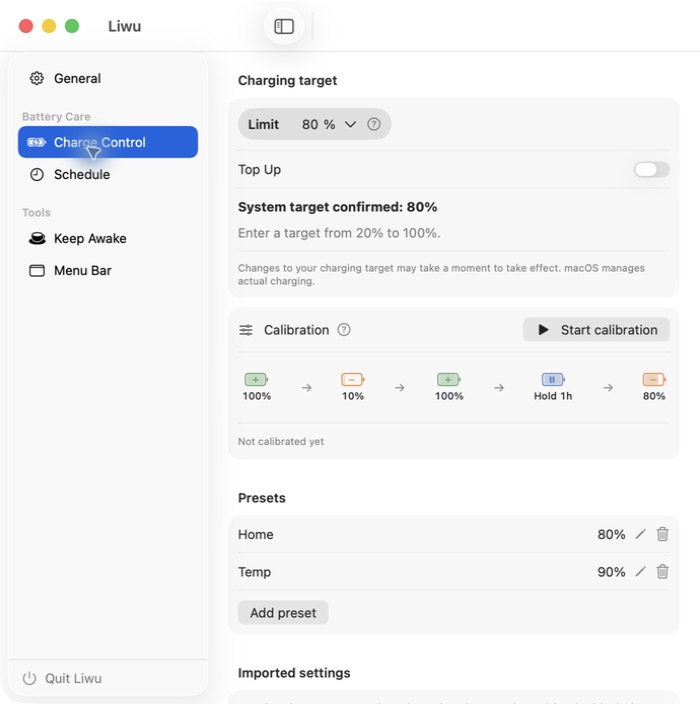
Before approving privileged access, use the MacBook charge limiter safety checklist to evaluate the download, signature, helper role, network boundary, conflicts, and removal path.
What happens at, above, and below the limit
- 80–100% targets: Liwu submits the target through the native system interface. macOS decides actual charging behavior, which can lag behind confirmation.
- 20–79% targets: available after a capability check, these use firmware controls and may actively discharge while plugged in. They use raw battery capacity, which can differ from the displayed percentage.
- Power readings: the battery bar separates adapter input from battery charging or discharging power. A plug icon alone does not mean the battery is charging.
Sleep, Quit, and restart behavior
- Sleep: the last target remains subject to system and firmware behavior. Liwu checks again on wake; it does not offer separate charging sleep rules in this version.
- Close a window: Liwu remains in the menu bar and plans continue.
- Choose Quit: Liwu sends a release request and exits promptly. The helper attempts to remove Liwu-owned restrictions and request the native 100% target. It may remain running to finish cleanup; release is not a promise of immediate charging.
- Restart or sign in: reopen Liwu, or use Launch at Login. Liwu reads current hardware state and reconciles incomplete transitions before writing; an interrupted calibration does not automatically resume.
Use one charging controller at a time. Keep Optimized Battery Charging off while Liwu manages charging, and follow any conflict or recovery notice rather than running two controllers together.
Free and Pro features in this workflow
Charging targets, presets, power readings, menu bar organization, OBC controls, and lid-open Keep Awake are free.
Liwu 2 Pro adds Top Up, Sailing (a charging range instead of a single target), a five-step battery calibration cycle, target and calibration plans, and lid-closed Keep Awake. Calibration requires supported low-target control and connected power. MagSafe indicator colors remain managed by macOS.
The runtime trade-off
Apple says battery chemical aging depends on a combination of factors, including temperature history and charging pattern. Its own battery features are designed to reduce time spent fully charged or otherwise reduce wear. That supports a modest conclusion, not a guaranteed lifespan result.
A lower limit trades unplugged runtime for less time at a high state of charge. An 80% target can be practical for a Mac that is usually near power, while a higher target may suit long unplugged days. There is no single correct percentage for every user, workload, temperature, or battery.
FAQ
Is 80% the best charge limit for every MacBook?
No. It is the lowest target Apple's built-in Charge Limit currently offers and a practical starting point for many plugged-in workflows, but the right balance depends on how much unplugged runtime you need and how the Mac is used.
Why is my MacBook above the Liwu limit?
The target is a requested setting, not an immediate battery percentage. Native targets follow macOS behavior; low targets use raw capacity and may discharge while plugged in. Check the actual power readings, confirmation status, and any conflict notice.
Can I keep a MacBook plugged in all day with a limit?
A limit can reduce time spent fully charged, but it does not remove every source of battery aging. Temperature history, charging pattern, workload, and the runtime you need still matter.
Does the limit survive sleep and restart?
The last applied setting remains subject to macOS and firmware behavior during sleep. After restart, Liwu checks current hardware state before resuming control. Do not assume a firmware setting was cleared just because the Mac restarted.
Do I need to keep a Liwu settings window open?
No. Keep Liwu running in the menu bar, but the settings window can be closed. Choosing Quit is different: it requests release of Liwu’s charging control. The helper can continue cleanup after the app exits.